

How to use the Microsoft Project lag filter. Recently one of our readers asked whether it is possible to create a filter in Microsoft Project to capture all tasks that have lag. Lag is waiting time between a predecessor task and a successor task. Tasks in Microsoft Project may have either a positive lag or negative lag (lead).
In our scenario a stakeholder wants a report listing all tasks in our schedule that have either a positive or negative lag. Yes, it is feasible in Microsoft Project to create a filter that captures all tasks that have lag, positive or negative.
This article provides a quick tip to create a filter in Microsoft Project that captures all detail tasks that have either a positive lag or lead.
Our demonstration project is displayed in Figure 1.
 Figure 1
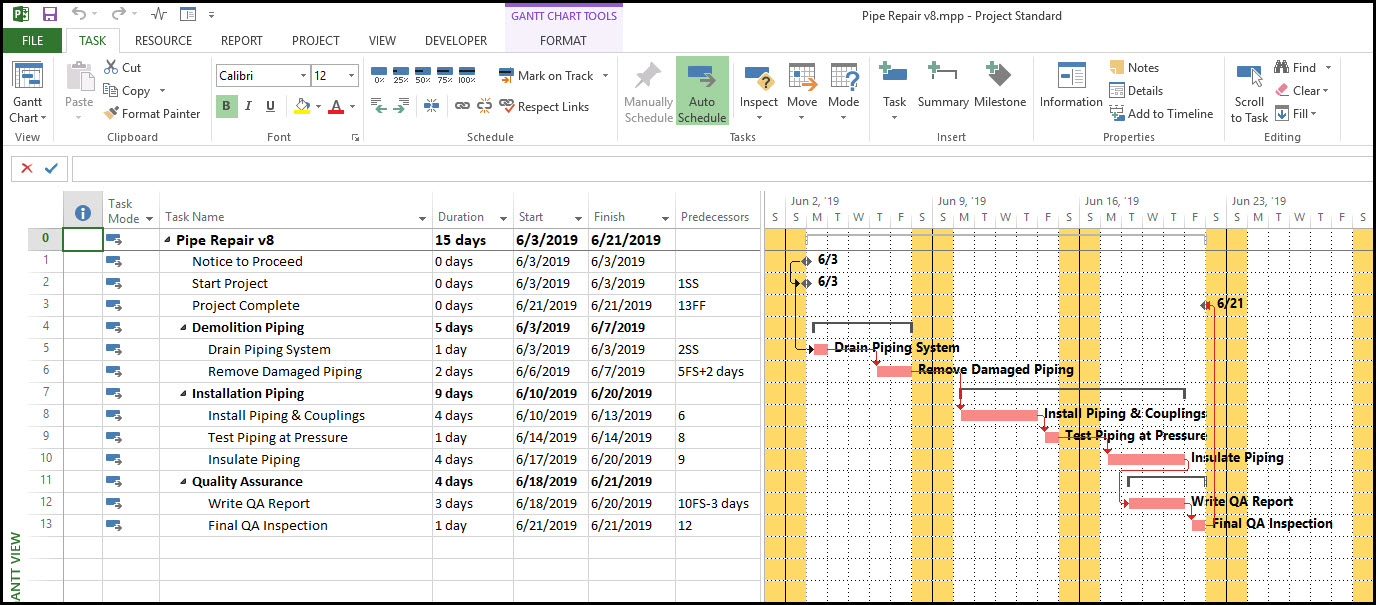
This is a piping repair project that includes both a positive and negative lag. We want to create a filter to capture all detail tasks that have lag, both positive and negative. The trick for this filter is knowing that the Microsoft Project lag prefix is a + or – sign depending on whether you have a positive lag or lead. Our lag filter is as displayed in Figure 2.
Figure 2
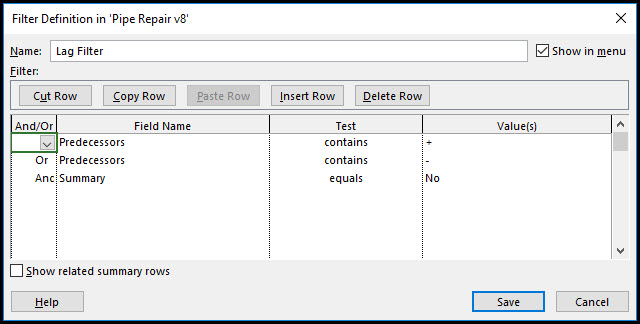
This filter captures all predecessor field names that contain either a + or – sign. Summary tasks are not included in this filter, only detail tasks. After our filter is created we apply the lag filter, Figure 3.
Figure 3
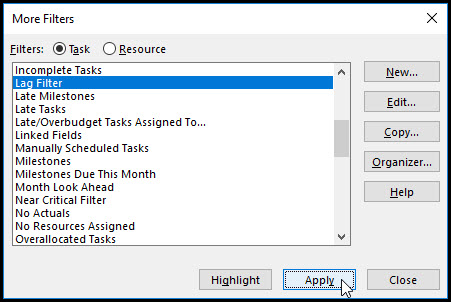
Figure 4 displays the lag filter results.
Figure 4
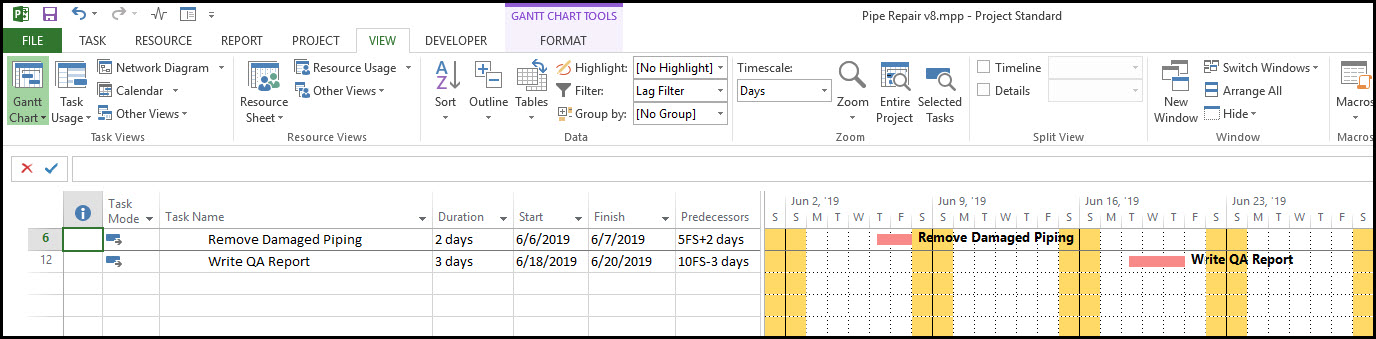
Our schedule has one 2 day positive lag and one 3 day negative lag.
Summary
Scheduling guidelines have been known to limit positive lags and forbid negative lags. In either situation stakeholders will want a report listing all lags, positive or negative. Microsoft Project’s filter feature supports the definition of a filter that captures all detail tasks that have lag. In this way schedulers may investigate schedule detail task lag to gain more insight into the schedule situation.