

How do you include a deadline date marker on your schedule Gantt chart and not lose your critical path? The answer is to make open ended activities critical. Let’s take a look.
Projects come with deadlines. It is the hard truth of managing any project. And displaying the deadline on the Gantt chart is most helpful. The problem is when a constrained milestone is included to mark the deadline the schedule loses its critical path.
One solution to this problem is to connect the projected completion date and the deadline date with a relationship and suitable lag. This approach is explained in detail in a blog Monitoring Forecasted and Contract Completion Dates in Primavera P6.
Another recently discovered solution is to set the scheduling options to make open ended activities critical. Of course, this whole practice is questionable as it artificially constrains your schedule. Your schedule should be driven by the logic and not contain any open ended activities.
This article demonstrates an efficient way to include a Gantt chart deadline marker in Primavera P6 and retain the schedule’s longest path.
We have in Figure 1 our demonstration project.
 Figure 1
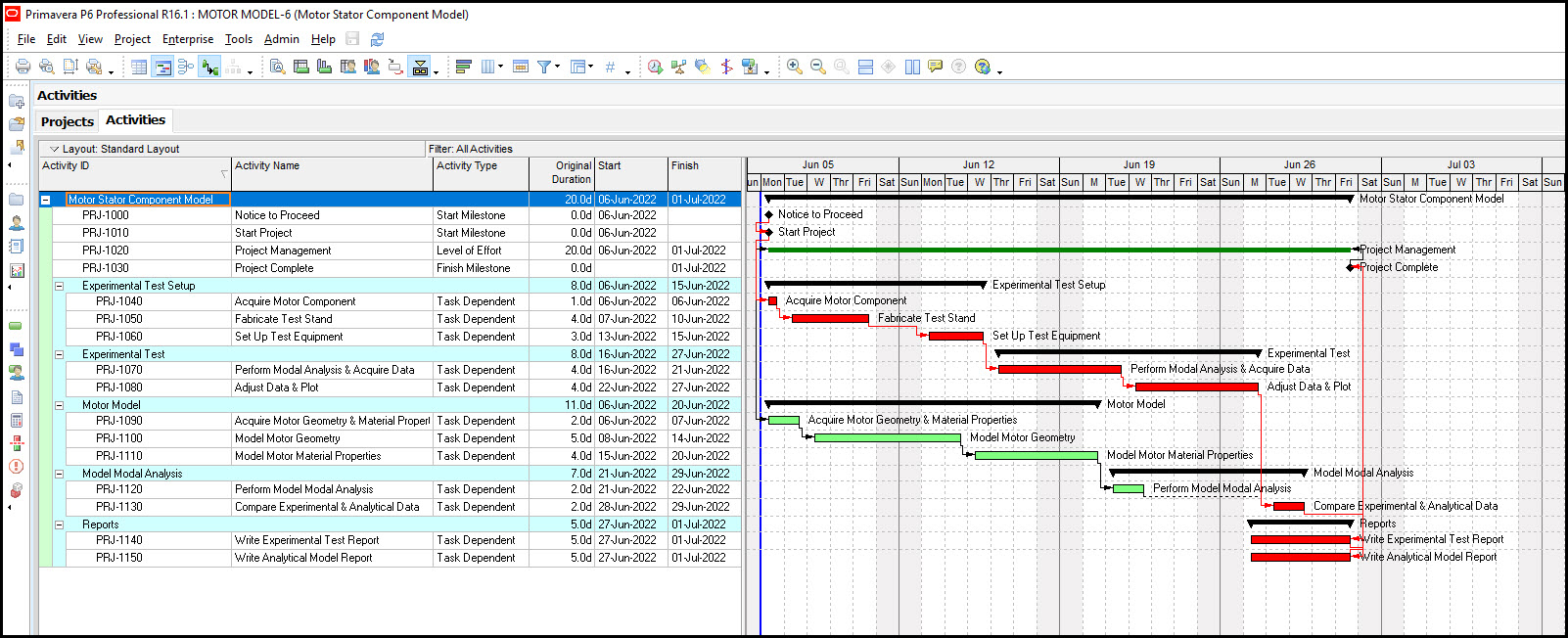
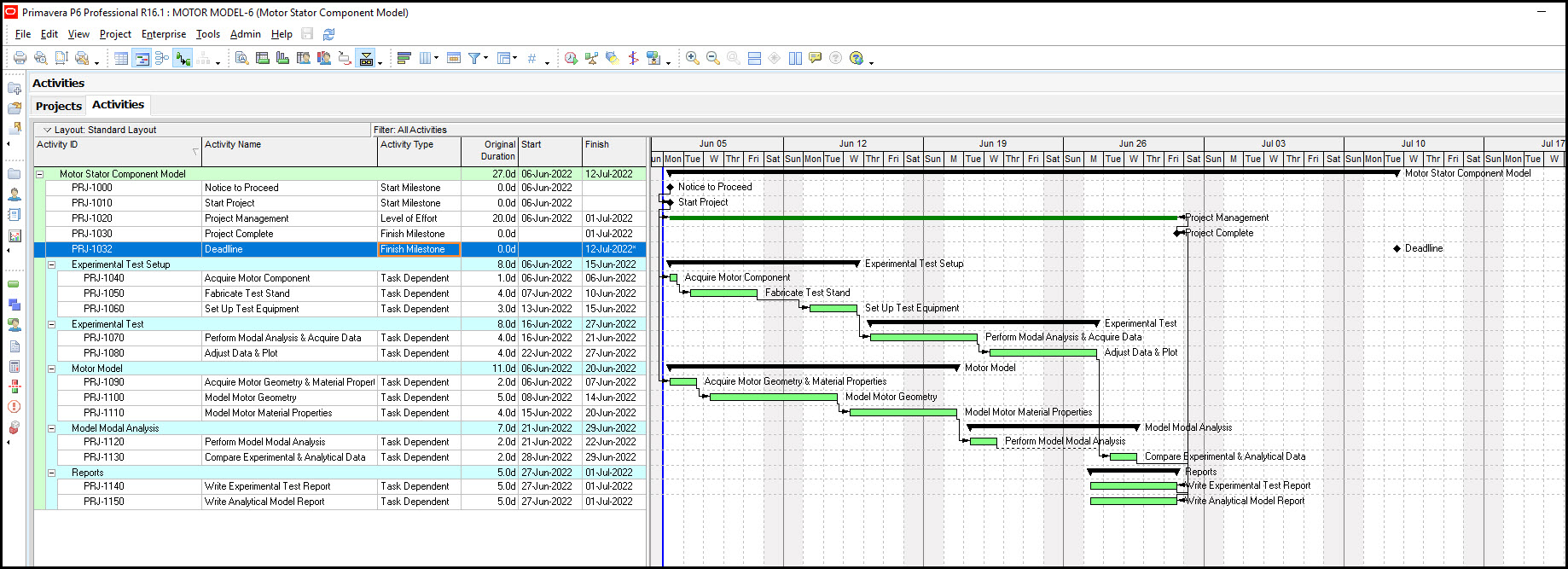
This is a research modeling project that has two paths: a critical experimental path and a non-critical motor modeling path. We want to include a deadline finish milestone in our schedule. We proceed and insert a deadline finish milestone directly below the project complete milestone, Figure 2.
Figure 2
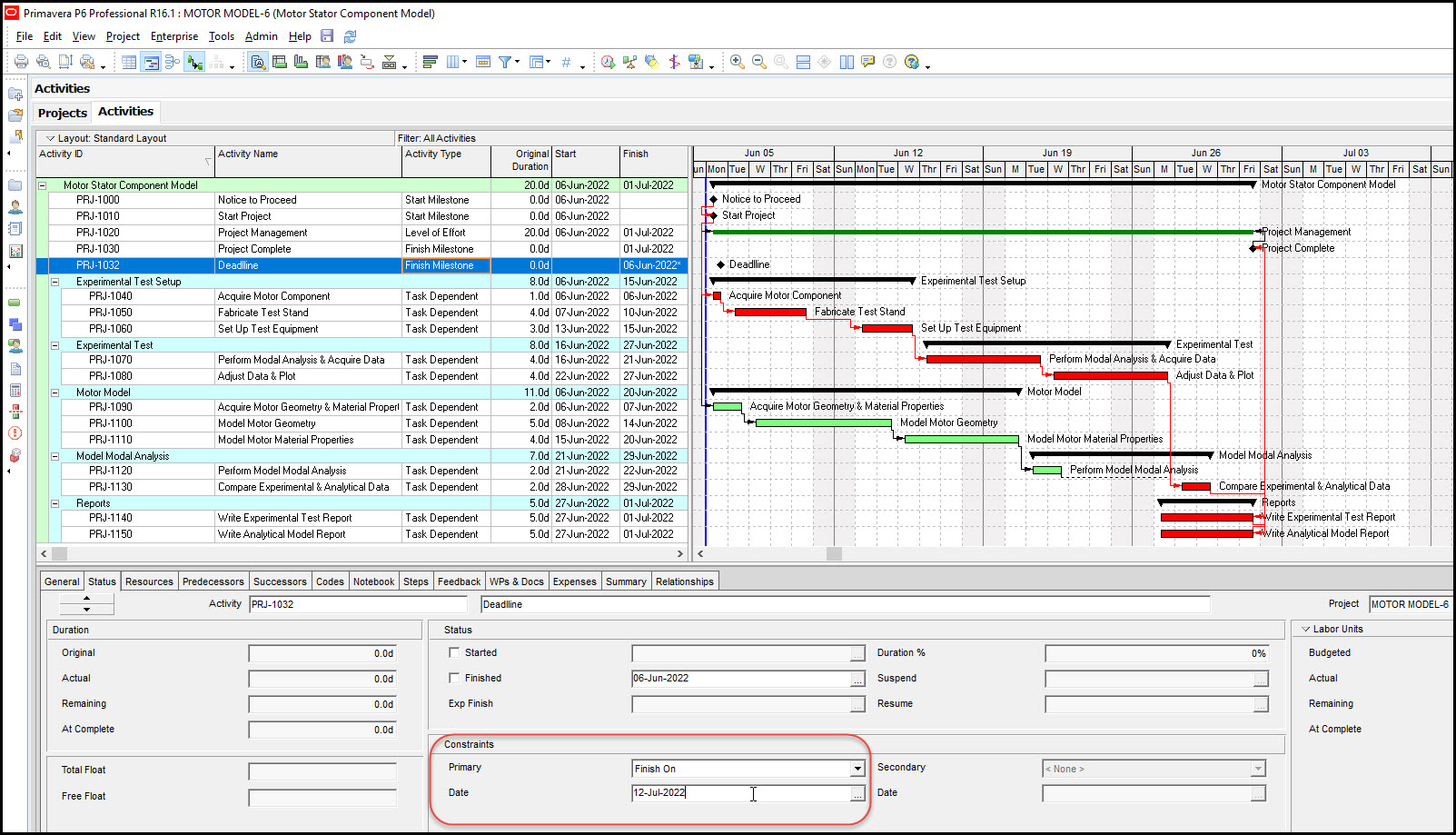
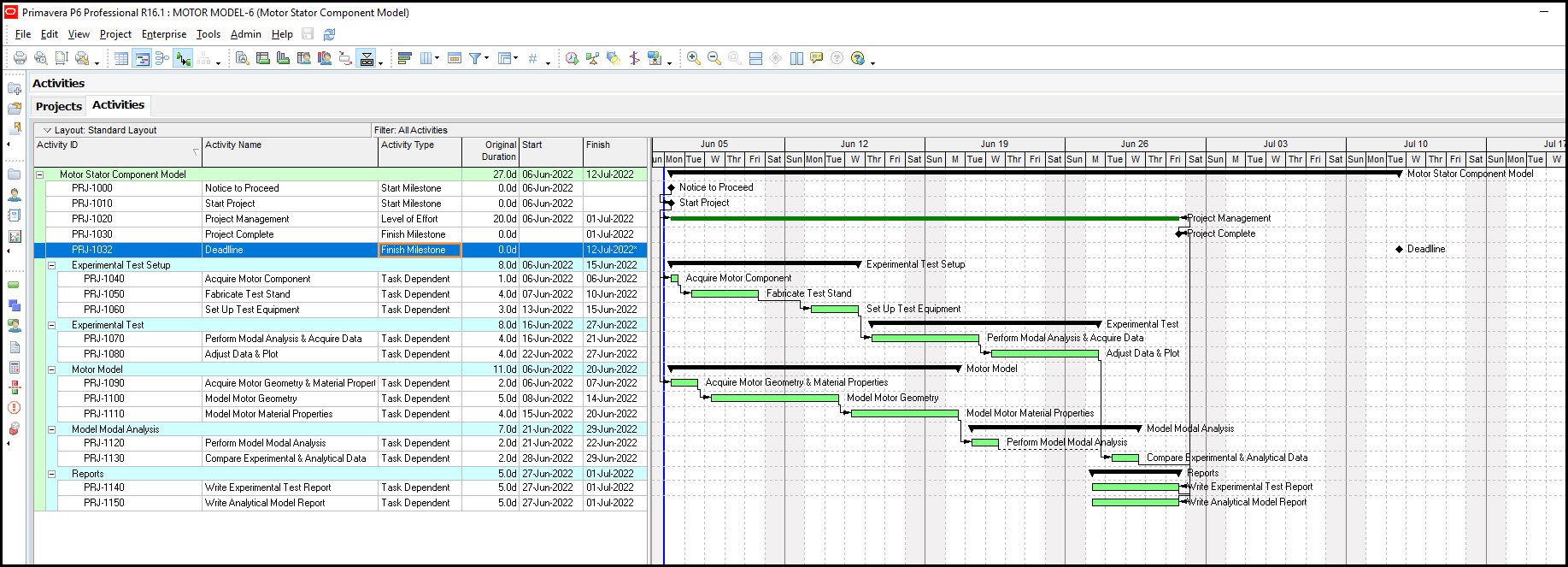
We assign our deadline finish on milestone a finish on constraint, again, Figure 2. Unfortunately, when we recalculate the schedule we lose our critical path due to the activity constraint on our deadline milestone, Figure 3.
Figure 3
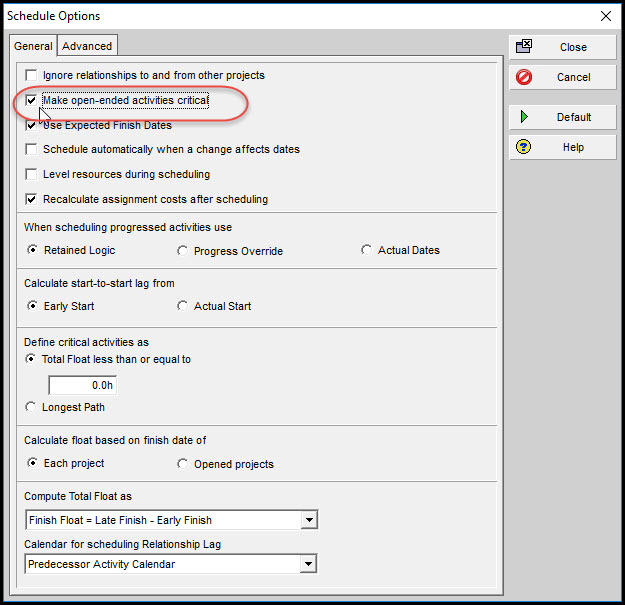
To correct this issue we toggle on “make open-ended activities critical” in the scheduling options, Figure 4.
Figure 4
Having made this change to our scheduling options we again recalculate the schedule, and it appears, Figure 5, that our new setting has no effect on our schedule; we still are missing our critical path.
Figure 5
The situation is we need to remove project management as a successor to project complete. This means project complete has no successor. And to make our project management effort span the length of the project we make its predecessor, write analytical model report, Figure 6.
Figure 6
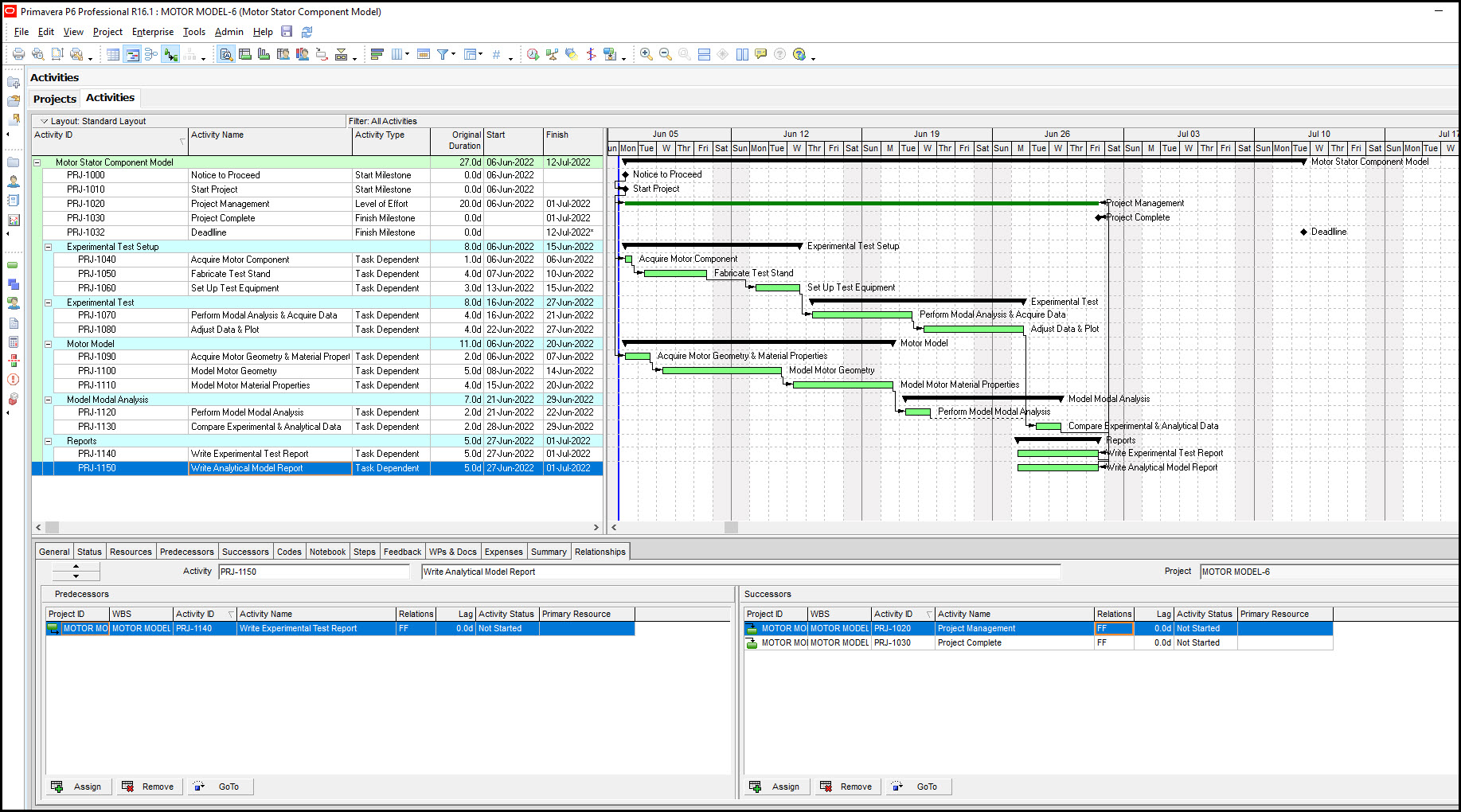
Note that write analytical model report and project management are connected by a finish to finish (FF) relationship. Now when we recalculate the schedule we find our critical path is back, Figure 7.
Figure 7
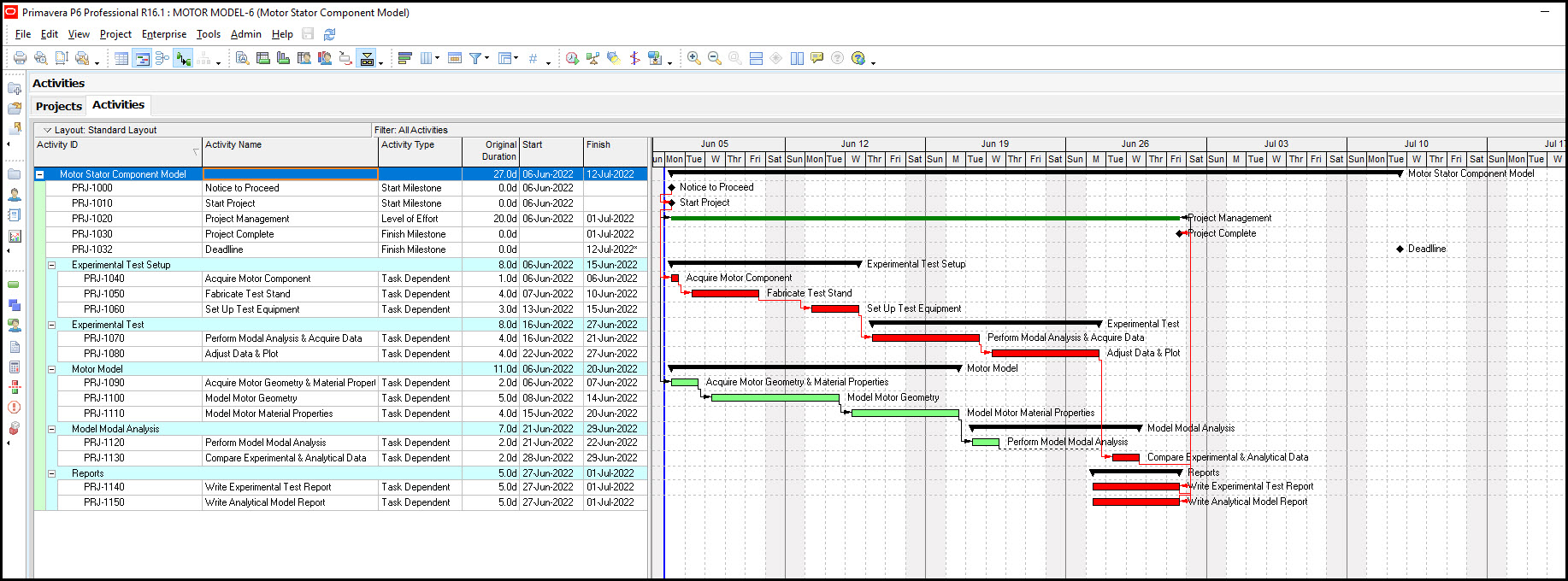
Let’s now investigate what happens when our project duration changes. In Figure 8 we increase the duration of acquire motor component to 4-days.
Figure 8
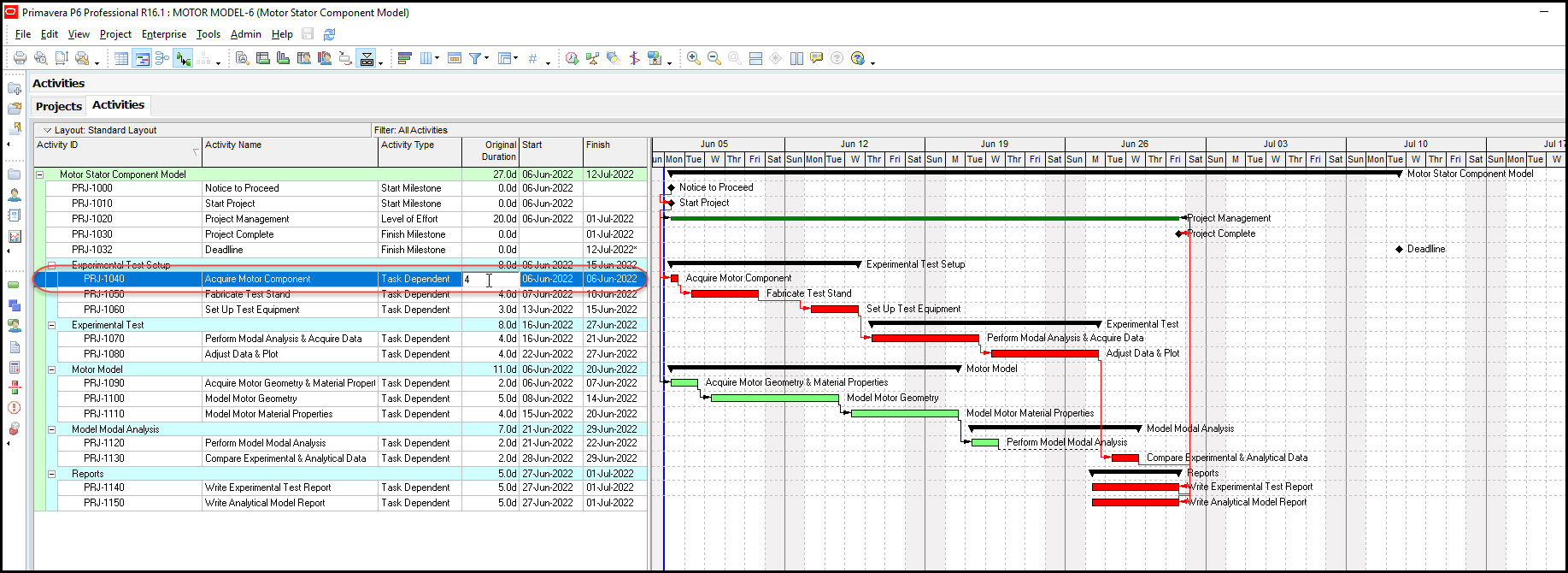
Recalculate the schedule and we observe, Figure 9, that our project complete milestone shifts right, and our deadline milestone remains fixed.
Figure 9
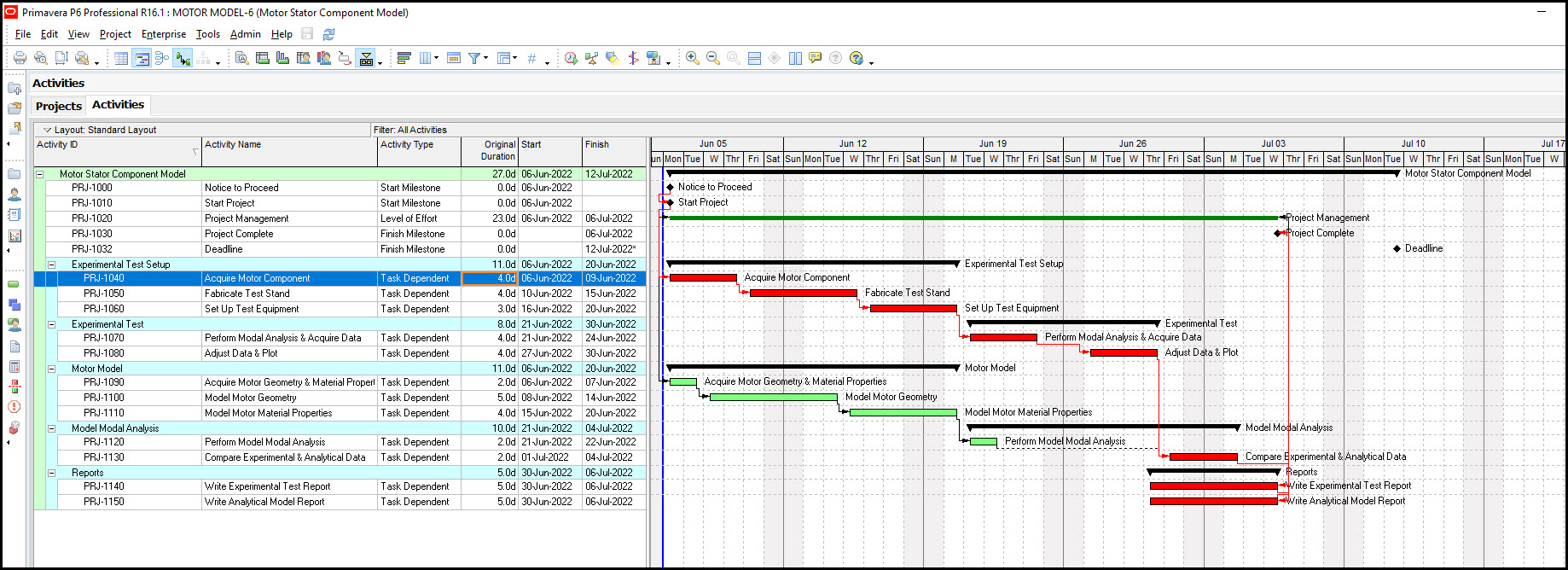
Great! This is what we want. Our deadline marker remains static while the project duration changes.
Summary
The make open ended activities critical scheduling option provides a nice way to insert a Gantt chart deadline milestone marker and maintain the critical path. To make the setting work be sure your project complete milestone has no successor. You will find when your schedule duration updates the project complete milestone moves, accordingly, but the deadline marker remains static.
The one disadvantage of this approach is that the total float column does not turn negative when the deadline date is missed. You would expect the total float column to register negative total float when the deadline is missed; it does not. So the deadline milestone in this approach operates as a static marker on the Gantt chart, and nothing more.
Again, the scheduler receives no total float warning that the deadline is missed. Schedulers have to observe the project complete milestone in comparison to the deadline milestone on the Gantt chart to track project progress in relation to the deadline.
This negative may cause schedulers to revisit the other deadline marker approach, mentioned previously, that connects the project complete milestone and deadline milestone with a relationship and suitable lag. The total float column, in this method, does provide warning when the deadline is missed. So the scheduler has more than one way to insert a Gantt chart deadline marker. And each different method has its own advantages and disadvantages.
Once again, scheduling best practices state that schedules should be driven by the logic and certainly not contain any open ended activities!