


P6 Key Terms and Concepts
Build a strong foundation by understanding the Primavera P6 key terms and concepts that professionals use.
Primavera P6 and project scheduling are packed with industry jargon. For a novice scheduler, acronyms like EPS, WBS, OBS and TF can be an enigma. However, knowing the P6 key terms and concepts puts you on firmer ground. Once you understand these essential terms, everything in P6 suddenly makes sense.
This article breaks down the P6 key terms and concepts to give you a firm understanding in the project scheduling field.
Projects
Primavera P6 is used for the planning, execution and analysis of project schedules. A project is an effort that has an identified beginning and end.
A project consists of deliverables, i.e., the product or service you provide your customer and the tasks required to produce each deliverable. A project achieves its goal with limited time and cost. Each project has its own schedule, a shared or unique calendar and settings.
Primavera P6 Organization
All projects are organized around and within a minimum of three structures:
- A structure for organizing projects called the Enterprise Project Structure (EPS)
- A structure for organizing activities within the project called the Work Breakdown Structure (WBS)
- A structure to organize project responsibility called the Organizational Breakdown Structure (OBS)
EPS (Enterprise Project Structure)
The EPS is a hierarchical framework within the P6 database, functioning much like folders in a Windows operating system. It organizes your company’s projects into categorized lists.
The EPS allows projects to be grouped under nodes (similar to folders) for organization and to summarize project data. Parent EPS nodes also summarize their child EPS nodes.
WBS (Work Breakdown Structure)
one of the most important P6 key terms, is the Work Breakdown Structure (WBS) at its core is a hierarchical breakdown of all the project deliverables. Each level in the hierarchy is a WBS element representing a specific deliverable. As the backbone of your schedule, it breaks the project down into logical deliverables, like “Foundation,” “Structural Steel,” or “Electrical Rough-In.” The WBS decomposes the work into increasingly smaller systems, components and down to the part level.
The lowest level of any individual path in this hierarchy is the work package. A WBS element becomes a work package when the work is specific enough that you can clearly and accurately define the activities, durations and costs required to produce that exact deliverable.
OBS (Organizational Breakdown Structure)
Project responsibilities are defined using an OBS. The OBS is an enterprise-wide hierarchy that reflects management responsibilities across divisions, departments and teams.
To understand this broad structure, consider how a company is organized. A large division (like Operations) is broken down into specific departments (such as research, engineering and manufacturing), which are further split into functional teams (like the product testing team).
Maintained by the system administrator, this single, company-wide OBS hierarchy is shared across the entire enterprise. It maps these management levels directly to EPS nodes and specific projects to assign clear accountability.
Primavera P6 Data Structure
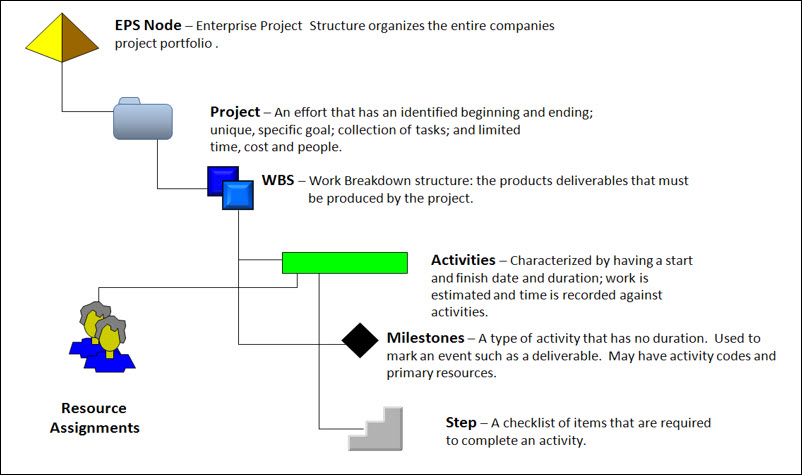
The Primavera P6 database has a defined data structure displayed in Figure 1.
EPS Nodes
At the top of the data structure is the EPS Node, represented by a yellow pyramid icon. EPS nodes serve as organizational buckets that roll up and summarize all schedule, cost and resource data stored beneath them, including individual projects and child EPS nodes.
Projects
If you dive into an EPS Node you come to projects, a blue folder icon. At the heart of each project is an activity table and Gantt chart. The Activity Table displays your WBS element banners and the specific tasks assigned to them.
Adjacent to the table, the Gantt Chart provides a visual timeline where WBS elements appear as summary bars, and individual tasks appear as horizontal progress bars.
WBS
The first data structure level you come to in the Project is WBS elements. These are the deliverables the project must produce. The system administrator’s jurisdiction includes the WBS but goes no further. The system administrator can assign user privileges for WBS elements, but not tasks.
Task
Tasks or activities are represented in Figure 1 with a green horizontal bar. Every activity must be assigned to a WBS element. This relationship is what allows P6 to roll up progress, physical percentage complete and costs by project phase or discipline.
Start and Finish Milestones
If a task has zero duration, then it is either a Start Milestone or Finish Milestone. In Primavera P6, milestones act like trail markers on a hiking path. They mark critical dates, achievements or boundaries, telling you exactly where the project has been or where it is going.
Resources
Resources represent the personnel, equipment or materials required to complete the project. While resources are assigned to activities to drive work and costs, they do not perform labor on milestones.
Because milestones have a zero-day duration, any resource effort applied to them results in zero hours of work, though resources are sometimes assigned to milestones purely to establish ownership of a critical deadline.
Step
At the bottom of the data structure are Steps, a powerful feature used to declutter the Gantt chart. A well-designed Gantt chart should remain a clean, readable timeline of major operational tasks and milestones.
If you break a schedule down into too many tiny tasks, the Gantt chart becomes unreadable. Primavera P6 solves this by letting you create a single activity, such as “Mobilize to Site”, and breaking it down internally into six sequential Steps. These steps track detailed progress without cluttering the visual Gantt chart.
Primavera P6 Activity Types
Primavera P6 Professional utilizes six distinct activity types to control how work is scheduled, tracked and budgeted:
- Start Milestone – A zero-duration activity that marks the exact beginning of a project event or phase. Examples include “Notice to Proceed (NTP),” “Project Start,” or “Contract Executed.”
- Finish Milestone – A zero-duration activity that marks the completion of a project event or phase. Examples include “Permit Approved,” “Client Sign-off,” or “Substantial Completion.”
- Task Dependent: The standard activity type used for the vast majority of tasks. It calculates schedule dates using the task’s assigned calendar and user-specified duration, independent of who is assigned to do the work.
- Resource Dependent – An activity scheduled using the unique calendars of the assigned resources rather than the activity calendar. This type is used when resource availability strictly dictates when work can occur. Use this with caution, as it can dynamically alter activity durations based on complex resource allocation rules.
- Level of Effort (LOE) – A supportive activity whose duration is dynamically determined by its preceding and succeeding tasks. LOE activities automatically stretch or shrink to span the gap between their logical links. This is highly useful for tracking ongoing project management overhead, safety oversight or administrative costs that do not directly produce a physical deliverable.
- WBS Summary – An activity that mirrors the duration and dates of all tasks nested within its specific WBS element. While standard WBS elements naturally summarize data from the bottom up, a WBS Summary activity allows for top-down cost estimating. If you do not know the cost of the underlying tasks but you do know the cost of the deliverable, you can assign that cost directly to the WBS Summary activity.
Relationships and Logic
Relationships define the logical sequence between activities, establishing the proper order of work. The four standard relationship types are:
- Finish-to-Start (FS) – The most common relationship. Activity B cannot start until Activity A finishes.
- Start-to-Start (SS) – Activity B cannot start until Activity A starts, allowing them to run in parallel.
- Finish-to-Finish (FF) – Activity B cannot finish until Activity A finishes.
- Start-to-Finish (SF) – The rarest relationship type and seldom used. Activity B cannot finish until Activity A starts.
Lag and Lead
You can further modify these relationships using Lag. Lag adds a required delay between two linked activities (e.g., adding 3 days of lag after pouring concrete to allow it to cure before building on it). To create a Lead (which overlaps activities, so they run concurrently), P6 requires you to enter a negative Lag value (e.g., entering -2 days Lag allows the successor task to start two days before the predecessor finishes).
In addition to these P6 key terms, check out our comprehensive primer on P6 relationship types. You can download a detailed guide here:
The Critical Path
The Critical Path is the single most important concept in project scheduling. It is the continuous sequence of dependent activities that determines the project’s earliest possible finish date. If any activity on the critical path slips, your whole project finish date slips right along with it.
Total Float vs. Free Float
To understand the critical path, you must understand Float (often called slack):
- Total Float – The amount of time an activity can be delayed without delaying the overall project finish date. Activities on the critical path typically have zero total float, meaning they have no wiggle room. Activities with positive total float can be delayed by up to that amount before delaying the project. Conversely, if a project falls behind a hard deadline, P6 can calculate negative total float, signaling that the project is already late.
- Free Float – The amount of time an activity can be delayed without delaying the start of its immediate next activity (successor).
In Primavera P6, you can calculate the critical path using two different scheduling options, Total Float or Longest Path.
- Total Float – Identifies activities as critical if their total float is less than or equal to zero.
- Longest Path – Identifies activities based strictly on the continuous driving logic from project start to completion. In this setting, an activity is critical only if it directly controls the overall project finish date.
If you choose Longest Path, P6 ignores activities that became critical only because of an individual activity constraint (like a “Must Finish By” date) and focuses solely on the duration of the network logic.
Calendars
Calendars in Primavera P6 define the available work periods, standard work weeks and non-work exceptions like holidays. P6 utilizes three distinct levels of calendars:
- Global Calendars – Available to every project across the entire database enterprise.
- Project Calendars – Locked to one specific project and cannot be seen or used by other schedules.
- Resource Calendars – Tied directly to individual people, equipment, or materials, reflecting their unique availability.
The Golden Rule of P6 Calendars
When creating a calendar, you must specify the standard work hours per day (typically 8 or 10 hours). However, ensure these calendar hours exactly match the software’s underlying Global Time Periods settings. A mismatch here will cause P6 to display confusing, fractional activity durations.
Additionally, exercise extreme caution when modifying a Global or Resource calendar. Adding a company holiday to a global calendar will instantly alter dates and create collateral changes across every project in the database using that calendar.
Baselines
A baseline is a frozen snapshot of your project schedule at a specific point in time. At a minimum, you must capture a baseline of the approved schedule before any project progress or work begins. As execution gets underway and the real-world plan changes, you compare your live schedule against this baseline to see what is ahead, behind or right on track.
Without a baseline, you have no reference point or static ruler to measure progress. Without this foundation, you can’t tell whether you are performing better or worse than planned, making progress reporting essentially meaningless.
How Primavera P6 Manages Baselines
Unlike basic software that merely saves baseline dates into hidden columns, Primavera P6 creates a baseline by making a complete, exact duplicate of your project file and locking it inside the main project database. P6 allows you to maintain multiple baselines simultaneously, which are categorized into two primary types:
- The Project Baseline – The official, contractually approved master plan used for high-level stakeholder reporting. Through project security profiles, an administrator can restrict access to this baseline, ensuring standard schedulers cannot modify it.
- User Baselines (Primary, Secondary, Tertiary) – Interim snapshots taken during monthly or weekly updates, allowing schedulers to measure recent, short-term performance variances. Schedulers retain the permissions needed to create, update, or delete these short-term baselines as the project progresses.
OBS and Resources
While both of these P6 key terms deal with people, the OBS and Resources serve completely different functions in P6:
- The OBS – Represents management accountability. It defines who is responsible for what by linking managers or teams to specific parts of the project hierarchy using the Responsible Manager field. The OBS works hand in hand with P6 security settings, controlling which users have permission to view or edit specific projects. Maintaining this master enterprise structure is strictly the system administrator’s responsibility.
- Resources – Represent the actual personnel, equipment or materials assigned to execute specific tasks. The Primavera P6 Resource Dictionary is global, meaning resources are shared across the entire company database. By loading resources onto tasks, P6 allows you to analyze resource allocation. You can easily spot over-allocations (asking a crew to work more than their standard workday) or identify gaps where labor is underutilized and sitting idle.
User-Defined Fields (UDFs)
Sometimes the default fields in P6 do not include everything your project needs to track. For instance, you might need a unique field to log a “Permit Number,” a “Subcontractor Name,” or a “Change Order ID.”
UDFs solve this problem by letting you create custom data fields tailored to your organization’s tracking requirements.
When you create a UDF in P6, you must assign it to a specific subject area (such as Activities, Projects, or WBS Elements) and choose one of nine available data types:
- Text – For names, notes, or alphanumeric strings.
- Cost – For custom currency and financial tracking.
- Start Date / Finish Date – For tracking custom target dates.
- Integer / Number / Double – For tracking whole numbers or precise decimals.
- Indicator – For visual status lights (red, yellow, green stoplights).
- Formula – For creating automated calculations based on other P6 fields.
Because UDFs are a global feature, any custom field you create becomes visible to everyone sharing the database. Schedulers should use them intentionally to keep the database clean and organized.
Layouts and Filters
Layouts and filters are essential tools for customizing, viewing and analyzing your project data without altering the underlying schedule logic.
- Layouts – A layout is a saved visual configuration of your P6 workspace. Once you customize your Activity Table and Gantt Chart to display a specific look and feel, you can save those settings as a layout to instantly recall them later.
A layout preserves column selections, sorting, WBS grouping bands, Gantt bar styles and active filters. You can save layouts as Global (available to all database users), User (private to you), or Project-specific.
You can also export layouts as Project Layout Files (.PLF) to send to clients alongside your schedule’s native file (.XER). This ensures your customer views the schedule with the same visual settings without rebuilding the view from scratch. - Filters – Filters allow you to isolate and display only the activities that match your specified criteria, such as “tasks starting this month” or “activities assigned to Subcontractor X”, while temporarily hiding the rest of the schedule. P6 allows you to combine multiple criteria using “All” (AND logic) or “Any” (OR logic) parameters to build highly specific data queries.
Summary
None of these P6 key terms and concepts live in isolation. A WBS organizes your activities, relationships define activity logic, calendars determine timing and the critical path reveals what drives your completion date.
The combination of the Activity Table and the Gantt Chart provides an incredible way to gain deep insight into your project’s future plan before construction begins. Once you understand these P6 key terms and concepts, you will have the perspective needed to build effective schedules.