

 If you’ve never downloaded Primavera P6 Professional before from Oracle’s web site, then these rather useful Primavera P6 download instructions offer a step-by-step guide to make the whole process a lot easier.
Primavera P6 Professional can be downloaded from Oracles e-delivery cloud website at the following URL:
If you do not already have an Oracle account, you will need to create a login account in order to access the Oracle software cloud.
Creating a Login Account (Registering) with Oracle
Click on the Create Account button.

Fill in the ‘Create Your Oracle Account’ form.

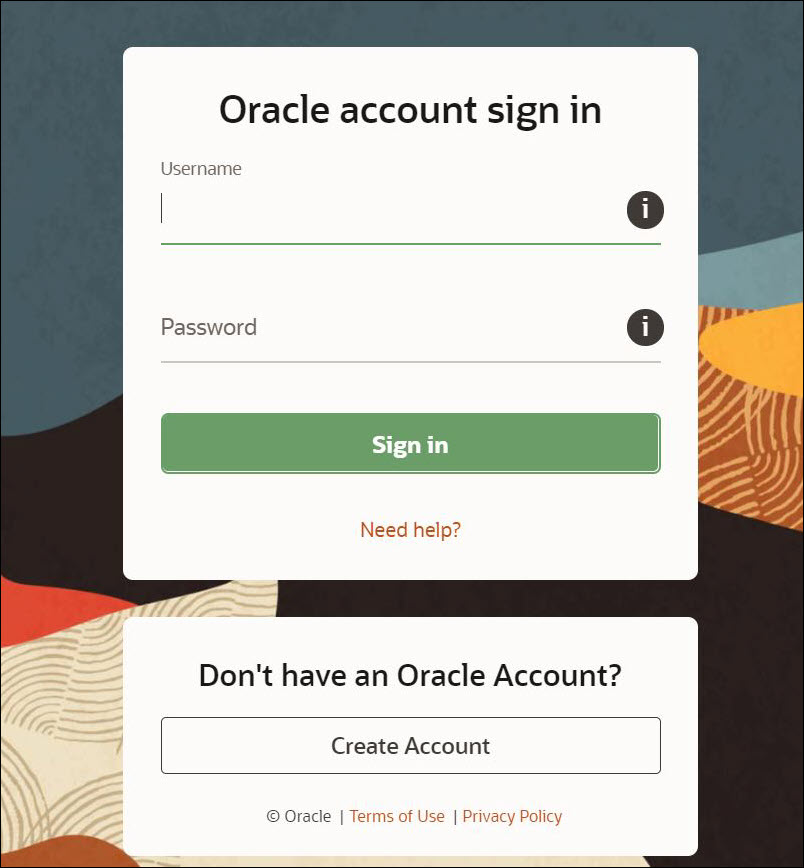
Having created an Oracle account, click on the Sign In button and login to the site.
You will then need to read through and agree to the terms and conditions of use for all Oracle software.
In the Oracle Cloud page:
Type Primavera P6 Professional in the search field.
From the resulting list, select Primavera P6 Professional Project Management.

In the next list you will see the latest version of P6 Professional offered.
Note: Oracle Primavera frequently update these versions and file names so you will likely see different files names and sizes than those show in these instructions. Therefore, please focus on the product names shown in these screenshots as we have hidden or genericized file names and sizes to avoid confusion.

The edelivery website will load your selection into a shopping cart.

Confirm the View Items has 1 item and click continue.

In the shopping cart, select the Microsoft Windows platform.

Now click on the Continue button.
To proceed to the download area, you will need to read and agree to the Oracle Standard Terms and Restrictions.

At this juncture an Oracle survey pops up, which you can choose to fill out or not.

In the Download page, click on the Vxxxxx-01.zip file for the Primavera P6 Professional Applications to start the download process (where Vxxxxx-01.zip is a generic example of the file names Primavera typically use for these media packages).

NOTE: On some systems you may need to right-click the zip file and select ‘save target as’ to download.

A Zip file appears in the lower left corner of the screen. The file will take several minutes to download depending on your internet speed.

After downloading left click the carat and choose ‘Show in folder’ from the popup menu.

Look in your Downloads folder for the Zip file.

Right click the Zip file and choose ‘Extract All…’.


Once you have downloaded and unzipped the Primavera P6 media file, see the Primavera P6 Professional Windows 10 Installation Instructions.pdf for details on how to install it on Windows 10.
These instructions will guide you through the installation process for Primavera P6.
Finally, do not forget to logout of Oracle.

Important Note: Download and the use of Oracle Primavera software is your responsibility. You must read Oracle’s terms and conditions and agree to them before downloading and installing any Oracle software.