

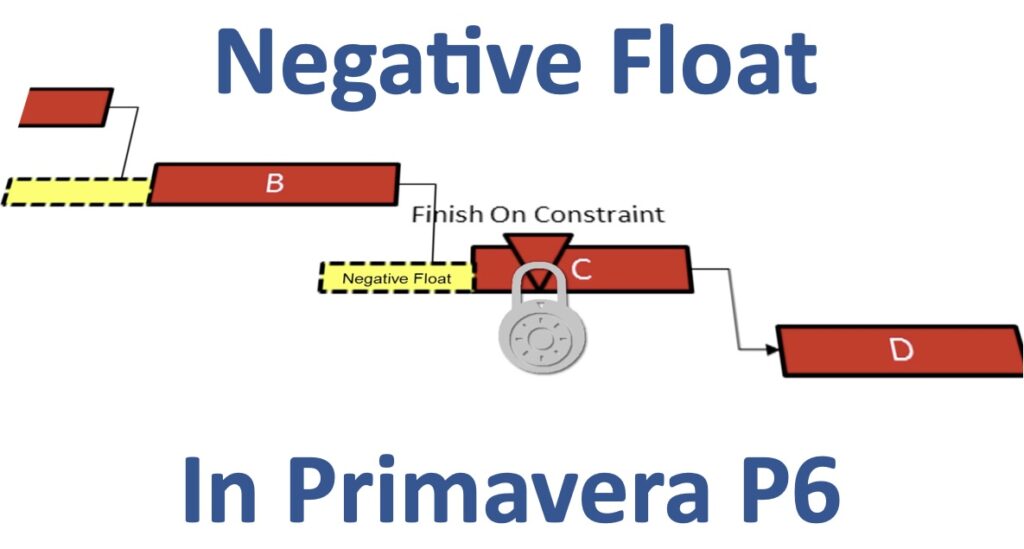
Negative Float in Primavera P6
Negative float is the ultimate warning sign in Primavera P6, signaling that your schedule logic has collided with a project or activity constraint. Let’s take a look.
Total float is how much time an activity can slip before it delays the project. Positive float means you have breathing room. Zero float means you’re on the critical path. Negative float means you have run out of room. The activity is already behind its required completion date.
As things stand, the schedule cannot meet the deadline on its own. You must intervene to get back on track. However, negative float does not mean your schedule is unfixable; it is simply your cue that something needs your attention. Once you understand its driver, you can often fix it.
The formula is straightforward:
Total Float = Late Start – Early Start (or) Late Finish – Early Finish
Negative float means the Late Start is earlier than the Early Start. In plain terms: the activity would need to start earlier than it can logistically, given your network logic and durations. This impossible timeline is the core problem with negative float.
This article explains the fundamentals of negative float, detailing how to identify, analyze and correct it within your P6 schedule.
💡 Negative float is a diagnostic, not an error: P6 handles negative float just fine in its Critical Path Method calculations to give you a mathematically valid schedule. The negative numbers simply show you the gap between what your network logic produces and what an imposed target requires.
Main Causes of Negative Float
1. An imposed constraint you can’t meet
This is the most common one. A Finish, Finish On or Before, or Mandatory Finish constraint is set on an activity or milestone, but the forward pass produces a date that blows past it. P6 forces the Late Finish back to the constraint date, and since the Early Finish is later, you end up with negative float.
2. The project end date is too early
If a Must Finish By date is set on the project that the forward pass can’t reach in time, negative float propagates all the way back through every activity on the driving path. They’ll all carry the same amount of negative float.
3. Unresolved progress slippage against a fixed deadline
When you update progress and activities slip, the remaining work pushes out beyond your required finish date. Because the contractual deadline or constraint is a fixed reality, P6 forces the backward pass to calculate from that immovable date. Since your delayed forward pass dates are now later than your required late dates, you get negative float across the entire delayed chain.
How Negative Float spreads through the network
Negative float rarely stays isolated to a single task. It creates a reverse domino effect, forcing the late dates of all preceding tasks backward along the driving path.
Here is a simple example of a serial chain (A through D). Milestone D is constrained to finish 5 days earlier than the network logic allows:
| Activity | Role | Early Finish | Late Finish | Total Float |
| D (constrained milestone) | End of chain | Day 25 | Day 20 | −5 days |
| C (predecessor of D) | FS link to D | Day 22 | Day 17 | −5 days |
| B (predecessor of C) | FS link to C | Day 18 | Day 13 | −5 days |
| A (predecessor of B) | FS link to B | Day 10 | Day 5 | −5 days |
In more complex networks, predecessor values may differ depending on merge and burst logic, but the principle is the same.
How to spot Negative Float in P6
- Sort the Activity Table: Add the Total Float column to your layout and click the header to sort ascending. This instantly forces your worst offenders to the top of the list.
- Turn on Driving Logic Indicators: In the Bottom Details pane, open the Relationships tab. Right-click to add the Driving column to both the predecessor and successor frames. This allows you to quickly trace which specific links are controlling the dates.
- Create a Negative Float Filter: Isolate the problem activities by building a custom filter with these settings:
- Open the Filters dialogue box.
- Click New and set the parameter to: Total Float
- Set the operator to: is less than
- Set the value to: 0h (or 0d, depending on your time units).
- Visualize the Delay on the Gantt Chart: Create a dedicated bar style to make negative float tasks pop out visually:
- Right-click the Gantt chart and select Bars.
- Click Add to create a new bar definition and give it a name (e.g., “Negative Float”).
- Set the Timescale to Remaining Duration
- In the Filter column, check both the Normal and Negative Float filters, ensuring the match criteria is set to All selected filters.
- Use the Bar Style tab at the bottom to choose a high-visibility color, like bright red.
- Identify the Target Constraint: Add the Primary Constraint and Primary Constraint Date columns directly to your Activity Table alongside Total Float. This lets you immediately see whether an activity’s negative float is driven by a hard deadline set on that specific task.
Compliance and Analysis Audit
Negative float indicates your schedule is mathematically slipping past a deadline. Beyond project delays, it poses a major contractual and compliance risk.
The DCMA Angle
The DCMA 14-Point Assessment’s negative float metric enforces a strict 0% threshold for unjustified negative float. According to the standard, any and all negative float in the schedule must be fully documented with a valid justification and a clear mitigation plan. Many contracts push this further, legally requiring zero negative float on the critical path at all times to ensure the project remains viable.
Before submitting or auditing a schedule, filter for Total Float < 0, report the count and magnitude, and provide a narrative for each instance. Is it a legitimate contractual constraint, a planning error or an unresolved recovery action?
How to Remove Negative Float
Option 1 — Remove the constraint
If the constraint isn’t contractually required, remove it. Always document why.
Option 2 – Relax the Constraint
Downgrade a “Mandatory Finish” to “Finish On or Before.” This transition from a hard constraint to a soft late constraint maintains the exact deadline dynamic; it will still calculate negative float if the logic pushes past the deadline, but it frees up the forward pass.
While the backward pass restricts the Late Finish (LF), the forward pass allows the Early Finish (EF) to be calculated naturally by the network logic. If logic improves, P6 will dynamically show the task finishing early and accurately display positive float, preserving your schedule mechanics.
Option 3 — Crash the schedule
Shorten durations on the negative-float path by adding resources or having resources work an agreeable amount of overtime. This shortens the duration with no loss of scope, but empirical data demonstrates it increases costs; you never get the time savings you would expect from the increased resource effort.
Option 4 — Fast-track the logic
Replace sequential FS relationships with overlapping SS relationships to allow parallel work. This compresses the calendar span without changing durations. Assess the rework risk carefully before going down this route.
Option 5— Move the constraint date
If the imposed finish date is genuinely unrealistic, escalate the issue up the chain of command to project leadership or the commercial team. They can negotiate a revised contract date with the client, allowing you to update the constraint in P6 and reschedule. This restores schedule realism and baseline integrity but requires formal commercial or contractual agreement.
Option 6 — Accept and manage
Sometimes negative float on a non-contractual internal milestone is OK to live with, provided it is not on the longest path, and the final project end date still shows zero or positive float. Internal pressure doesn’t always equal project delivery risk.
⚠️ Don’t drag bars to make negative float disappear: Manually entering dates or dragging a bar triggers a P6 pop-up prompt asking if you want to add a constraint to the activity. Clicking “Yes” to this prompt masks the problem rather than solving it; the schedule looks clean temporarily, but it will stop updating correctly once you begin entering progress. Fix the root cause through logic, durations or formal constraint changes — not by overriding dates.
Summary
Negative float is a warning indicator that your schedule as planned will not meet an interim activity constraint date or an end-of-project deadline. It does not mean your schedule deadline is unachievable, but direct, proactive intervention is required.
While often triggered by an overly optimistic activity constraint or progress delays, negative float must be aggressively managed. Schedulers can filter the activity table or configure a custom Gantt chart Bar definition to isolate and display impacted tasks.
Ultimately, the DCMA 14-Point Assessment flags negative float tasks and requires an audit trail and mitigation plan, but P6 Professional provides several robust tools to reduce or eliminate negative float entirely.