

Sometimes your project task requires special accompanying instructions. The best way to include these details is using the task notes in Microsoft Project.
Projects are not planned in isolation. Usually several departments will review a schedule and provide their input or special guidance during the planning and approval stages of a project. The safety department may want to specify procedures for handling hazardous materials. The environmental protection group may have requirements for disposing of project related pollutants. Many times the task name is not enough to voice these department’s concerns and describe the true project situation.
Task notes In Microsoft Project allows the scheduler to add a text note to a task to clearly specify additional direction related to that respective task. Thus the tasks notes in Microsoft Project feature provides the scheduler an additional conduit for communicating task related instructions.
This article explains a quick tip for including task notes in Microsoft Project schedule.
Task Notes In Microsoft Project
We have in Figure 1 our demonstration project.
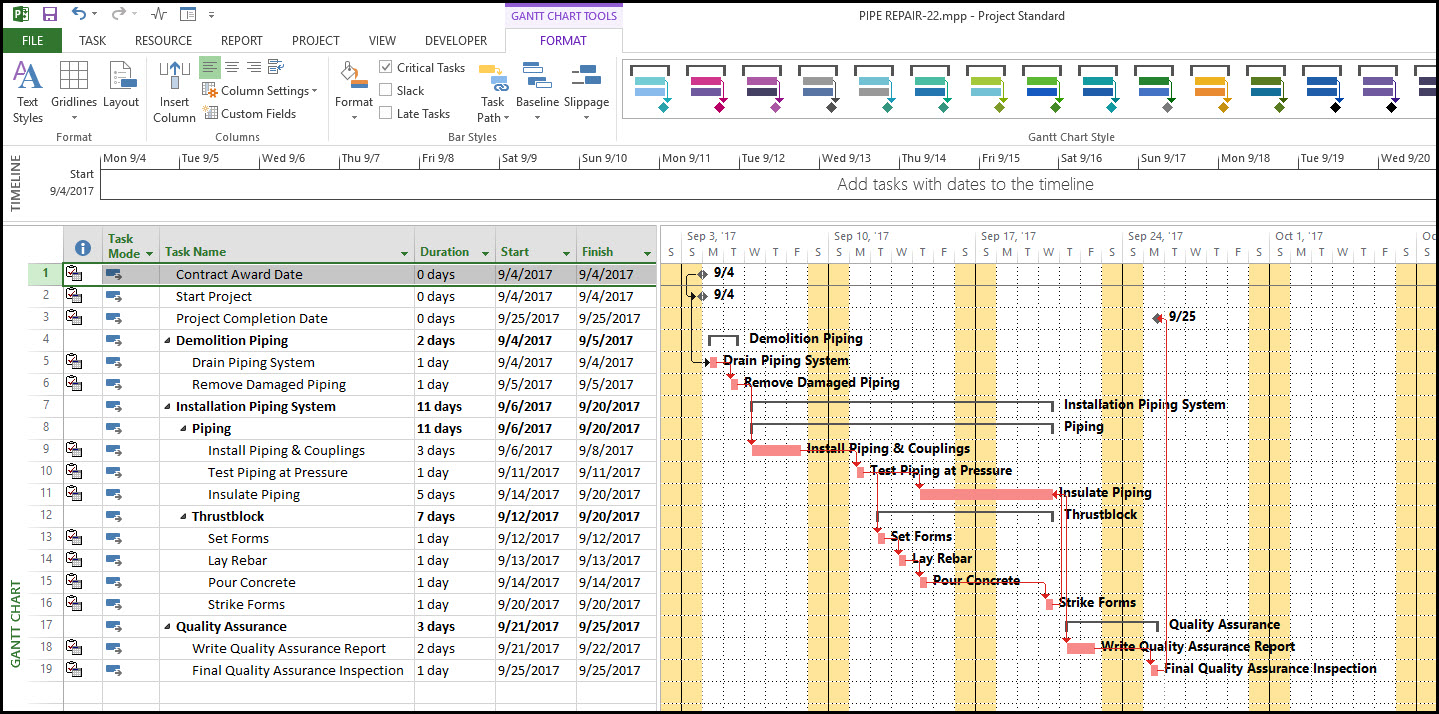 Figure 1
We want to insert notes on the drain piping system and remove damaged piping tasks. Let’s begin by highlighting drain piping system and select task tab and notes from the properties ribbon group, Figure 2.
 Figure 2
In the task information dialog notes tab we enter the task’s respective note, Figure 3.
 Figure 3
Now observe the yellow indicator in the information column, Figure 4.
 Figure 4
We continue and highlight remove damaged piping, Figure 4, and select the notes feature icon. Again, we enter an associated note for this task, Figure 5.
 Figure 5
We now want to print out our notes along with the Gantt chart. Select File | Print and page setup, Figure 6.
 Figure 6
In the page setup dialog view tab toggle on print notes, Figure 7.
 Figure 7
In Figure 8 we see that we are ready to print out the Gantt chart on page 1.
 Figure 8
On page 2 a list of the notes is printable, Figure 9.
 Figure 9
This is great, but we may want our notes to appear front and center on the Gantt chart, which is the heart of scheduling software. This may be done by selecting the format tab, bar styles ribbon group, format, and bar styles, Figure 10.
 Figure 10
We update the critical bar definition by displaying task name on the left and notes on the right, Figure 11.
 Figure 11
In Figure 12, we have our Gantt chart displaying summary task names, tasks names, and special task notes.
 Figure 12
Summary
Notes is a way to call out special task instructions. It is possible to print out a list of tasks and associated notes on the following page to the Gantt chart. You may, however, want to include your notes directly on the Gantt chart. Insert notes directly on the Gantt chart by adjusting the bar styles format definition of critical and non-critical normal tasks. Adjust the placement of task labels to suite the insertion of task related notes.